
Seamless carousel maker
One picture, across every swipe.
CollageDeck builds a carousel as one wide canvas: 2 to 5 portrait slides side by side. Photos, words and stickers can sit across the joins, so each swipe reveals the rest of the picture. When you save, every slide becomes its own 1080 × 1350 image, in posting order.

Free on iPhone & iPad · In-app purchases
N° 01 How it works
Designed as one canvas, posted as slides.
This is a real CollageDeck carousel: three slides, shown here as the one canvas they were made on. The dashed lines are where CollageDeck cuts it. The dog, the coffee, the bicycle and the cat all cross a join.

Now swipe it
The same carousel, slide by slide, as it posts. Swipe or scroll sideways.



N° 02 The details
Exactly the slides Instagram expects.
Every slide has the same 4:5 portrait shape, so none is cropped differently from the first. CollageDeck shows the slides as they will post before saving them.
- Slides
- 2, 3, 4 or 5
- Slide shape
- Portrait, 4:5
- Each slide
- 1080 × 1350 pixels
- Canvas
- 2160 × 1350 (2 slides) to 5400 × 1350 (5 slides)
- Saved as
- Separate photos, in posting order
- Motion
- Left out; carousels save as still photos
- Watermark
- None
N° 03 Step by step
How to make a seamless carousel on iPhone.
Pick your photos
Choose the photos for the whole carousel at once, up to 10.
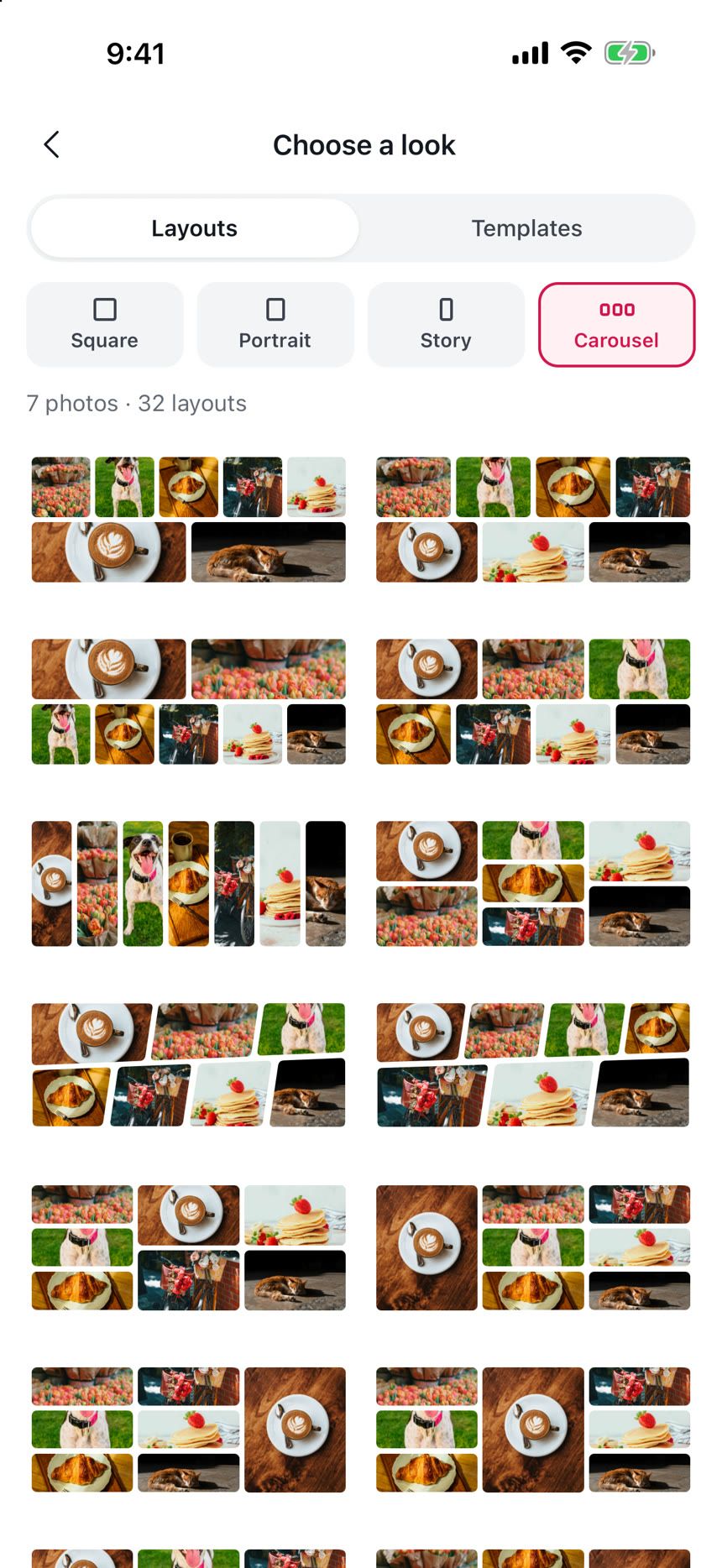
Tap Carousel
In Choose a look, tap Carousel. Every carousel layout is drawn with your photos, so you can compare them.
Cross the joins
Place a photo, a line of text or a sticker across the join between two slides to pull the eye onward.
Save the slides
Tap Export. CollageDeck shows each slide, then saves them to Photos as separate images in posting order.
Post them in order
Start a new Instagram post, select the slides in the order they were saved, and share them together.
N° 04 Ideas
Four carousels that use the joins.
- The panorama. One wide landscape photo running across the slides, so the view opens up as people swipe.
- The reveal. A big photo that starts at the edge of slide 1 and is only complete on slide 2. People swipe to see the rest.
- The photo dump. Seven to ten everyday photos, a few of them crossing joins, like the example above. See photo dump ideas.
- The before and after. Before on slide 1, after on slide 2, with an arrow sticker crossing the join between them.
Also for Instagram: profile grid tiles
A carousel goes left to right in one post. A profile grid goes the other way: Export can cut one collage into 3, 6 or 9 tiles that line up across the top of your profile, saved in the order to post them.
Questions
How many slides can a CollageDeck carousel have?
Two to five. You design all of them at once on one wide canvas, and CollageDeck cuts it into slides when you save.
What size are the slides?
Each slide is saved at 1080 × 1350 pixels, a 4:5 portrait. A five-slide carousel is a 5400 × 1350 canvas cut into five.
Is it really seamless?
Yes. The slides are cut from one canvas at exact pixel boundaries, so a photo, word or sticker that crosses a join lines up again when you swipe.
Can a carousel include animation or video?
No: a carousel is saved as still photos, and any motion in the collage is left out. To post something that moves, save a regular collage as an MP4.
Can I split a collage into a profile grid instead?
Yes. Export can cut a collage into 3, 6 or 9 tiles for the top of your Instagram profile grid, saved in the order to post them.
Is there a watermark, and is it free?
There is no watermark, ever. CollageDeck is free to download with every tool available; your first 3 exports are free, and CollageDeck Pro makes them unlimited.




Give them a reason to keep swiping.
CollageDeck for iPhone and iPad.

Free download · In-app purchases · iOS and iPadOS 16.4 or later