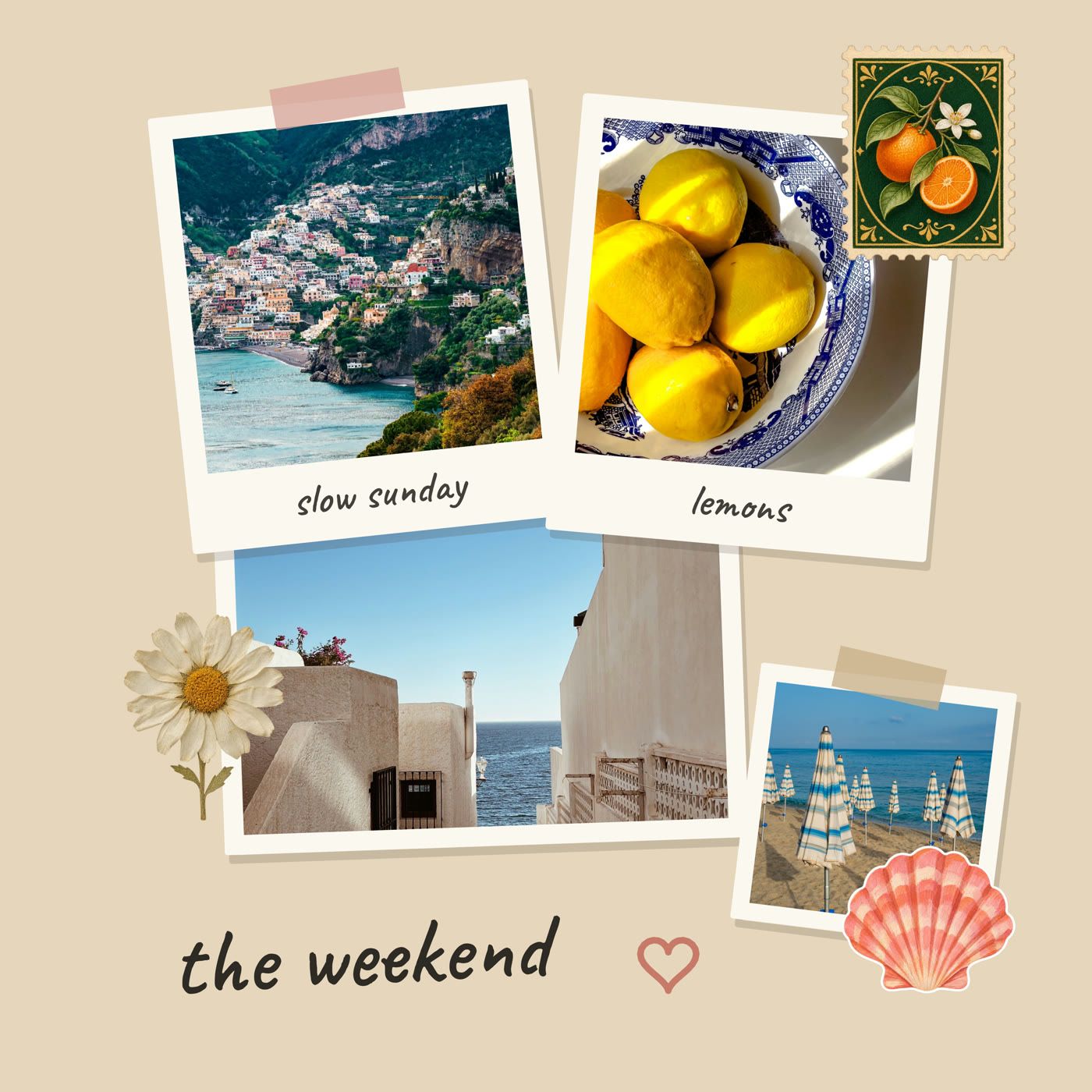
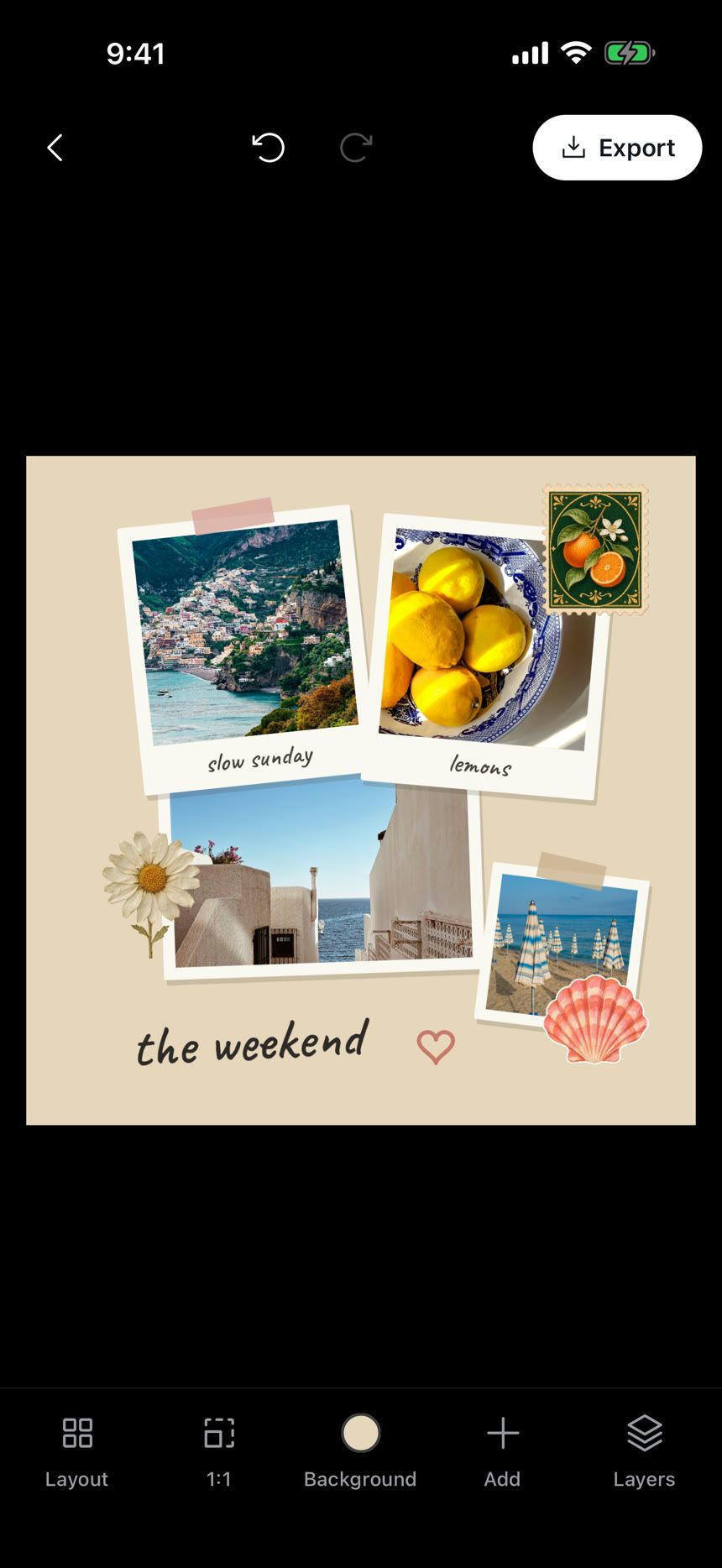
Pick a few photos and CollageDeck lays them out as a scrapbook page: instant-print frames, washi tape, a wax seal, a caption in a handwritten font. Start from a finished design or a blank layout, change anything, and save it in up to 4K.
Free on iPhone & iPad · In-app purchases
N° 01 What goes on a page
Everything a paper page has, minus the glue.
A scrapbook page is a few photos and the small things around them. In CollageDeck each of those is its own layer, so you can move, resize, turn or remove it at any point.
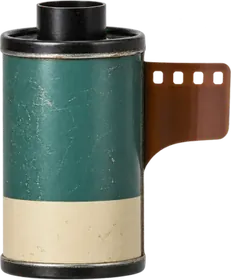
Photos in frames. Instant-print borders and film strips from the Photo Frames and Film Borders collections, or a border, rounded corners and a shadow on any photo.
Tape and trims. Washi tape, ribbons, lace and paper corners to hold the prints down.
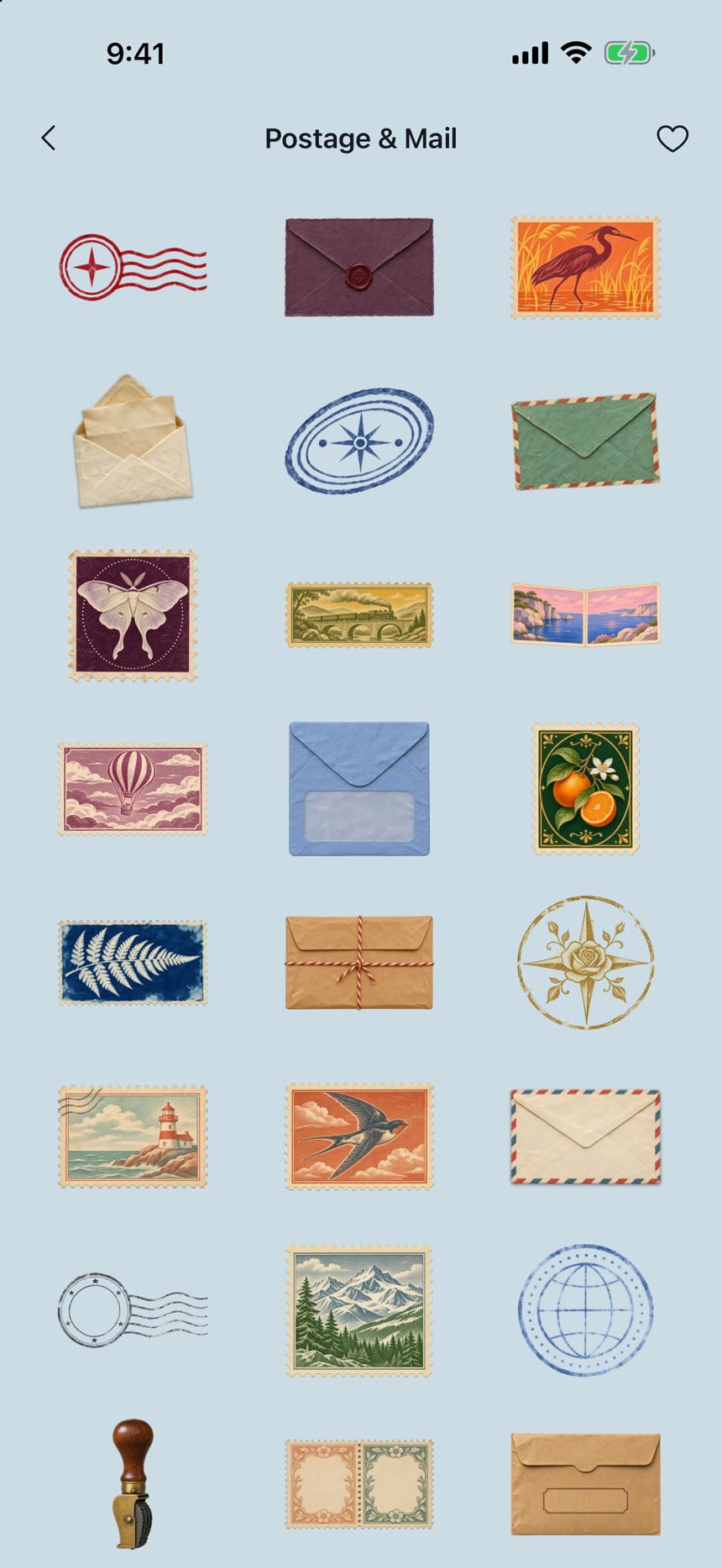
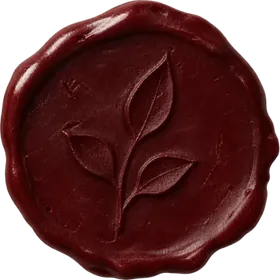
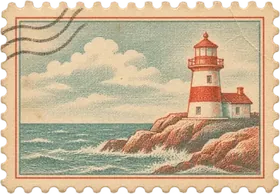
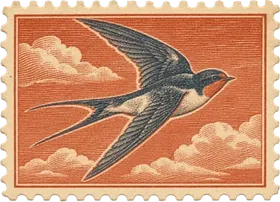
Bits of paper. Postage stamps, wax seals, tickets, labels and torn scraps.
Things you’d press or keep. Flowers and leaves, café treats, travel souvenirs.
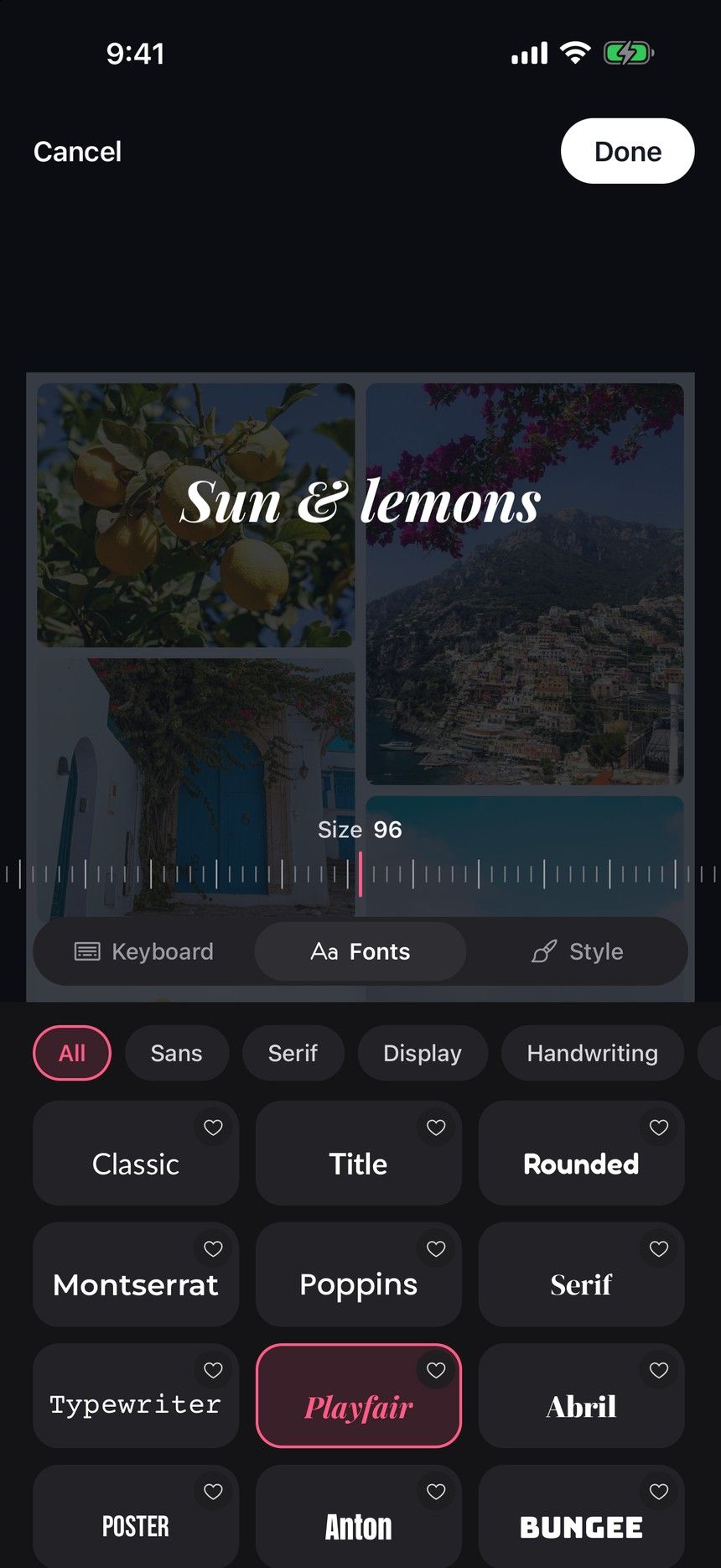
A caption. Handwritten, script and typewriter fonts among the 25 in the app, in any color.
The paper itself. A background in a solid color, a gradient, a pattern or a soft blur of one of your photos.
N° 02 Ready-made pages
Start from a finished page, then make it yours.
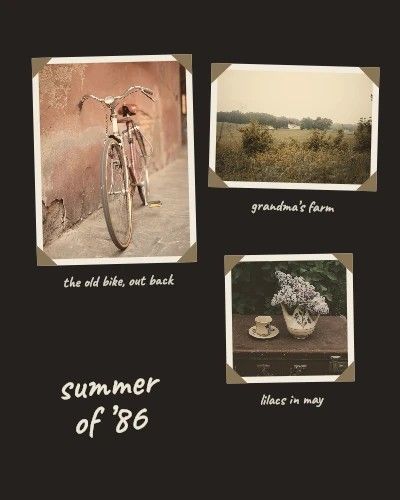
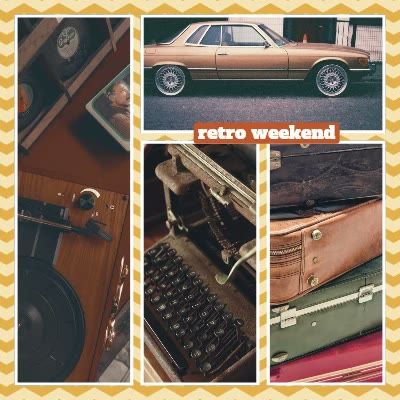
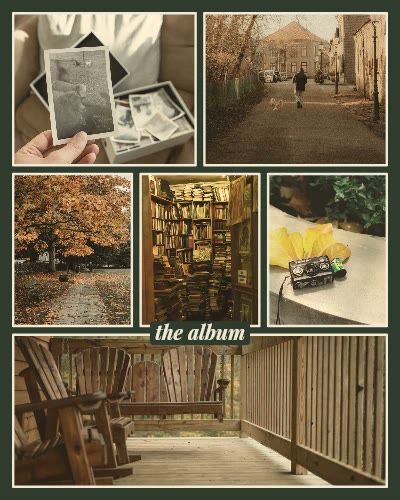
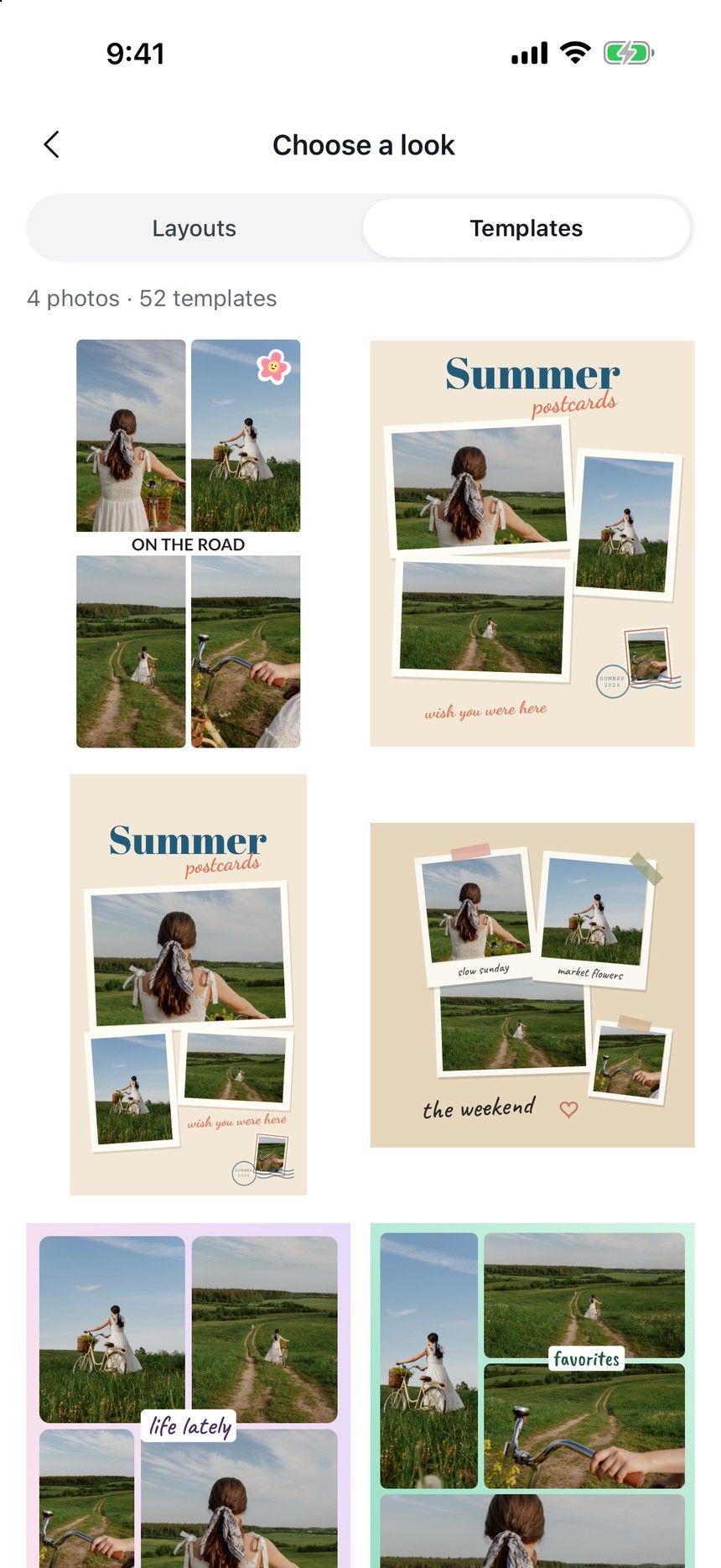
The Scrapbook collection has a dozen designs, from instant-print albums to film strips and pressed-flower pages. Your photos take the place of the samples, and every word, color, frame and sticker stays editable.
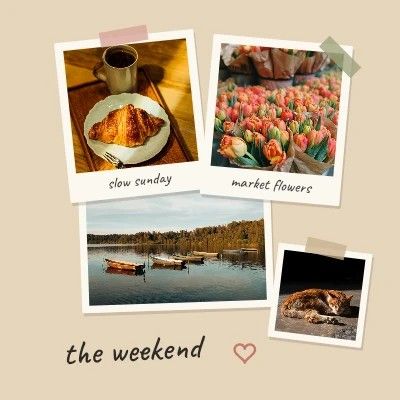
Weekend Scrapbook
Polaroid Memories
Vintage Journal
Film Roll
Pressed Flowers
Memory Lane
Picnic Day
Old Letters
Summer Days
Retro Weekend
The Album
Designs as they appear in the app, shown with sample photos.
N° 03 The sticker library
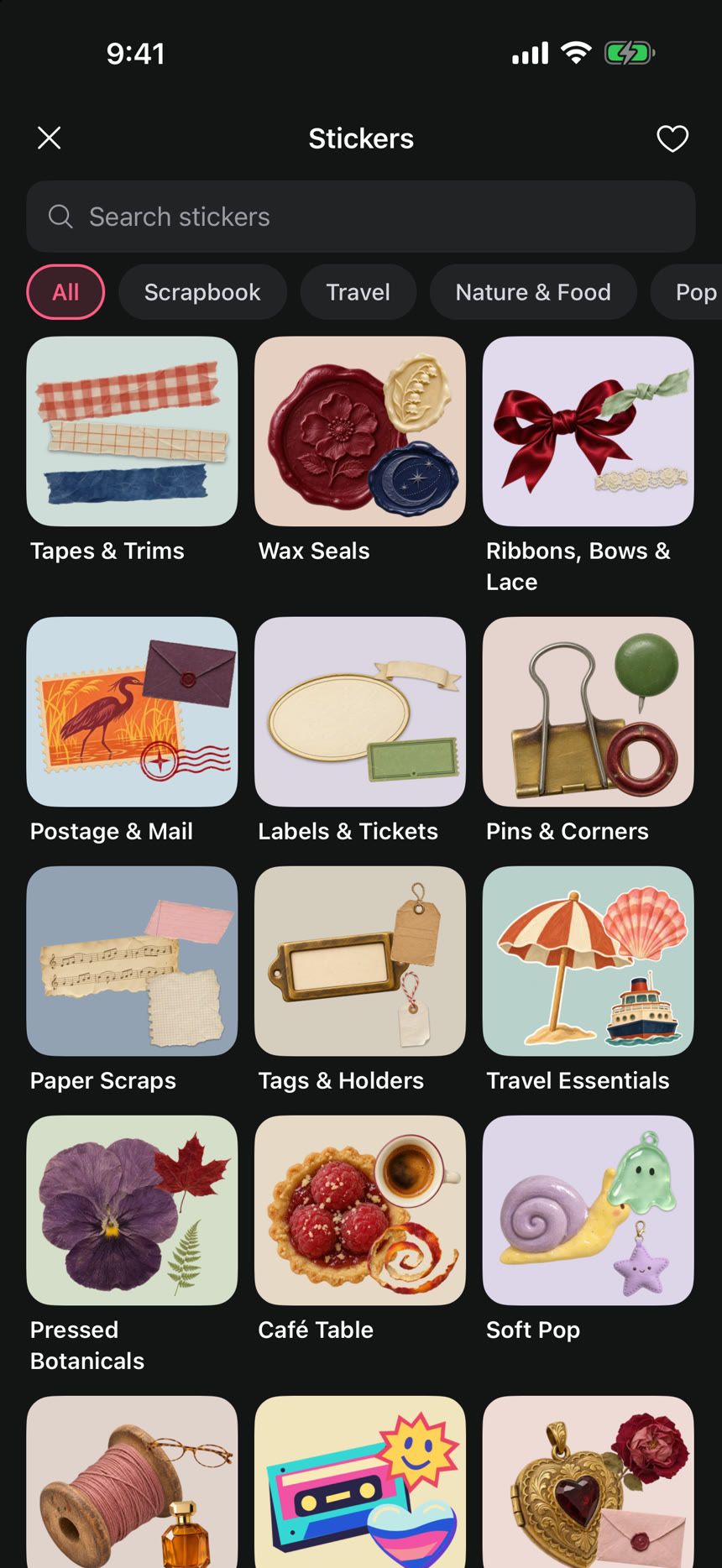
552 stickers, in 33 collections.
CollageDeck 1.1 brings a new sticker library made for scrapbooking: tapes and trims, wax seals, ribbons and lace, postage and mail, labels and tickets, paper scraps, pressed botanicals, film borders and photo frames, marker notes and more.
552 stickers
33 collections
17 languages
Favorites. Touch and hold a sticker to keep it, or tap the heart on a collection to keep the whole set. Both live together in Favorites.
Search in your language. Sticker and collection names are translated into all 17 languages the app speaks.
Recent. The last eight stickers you used wait at the top.
N° 04 Step by step
How to make a digital scrapbook page on iPhone.
Choose your photos
Open CollageDeck and pick 2 to 10 photos. They stay on your iPhone; nothing is uploaded.
Pick a design or a layout
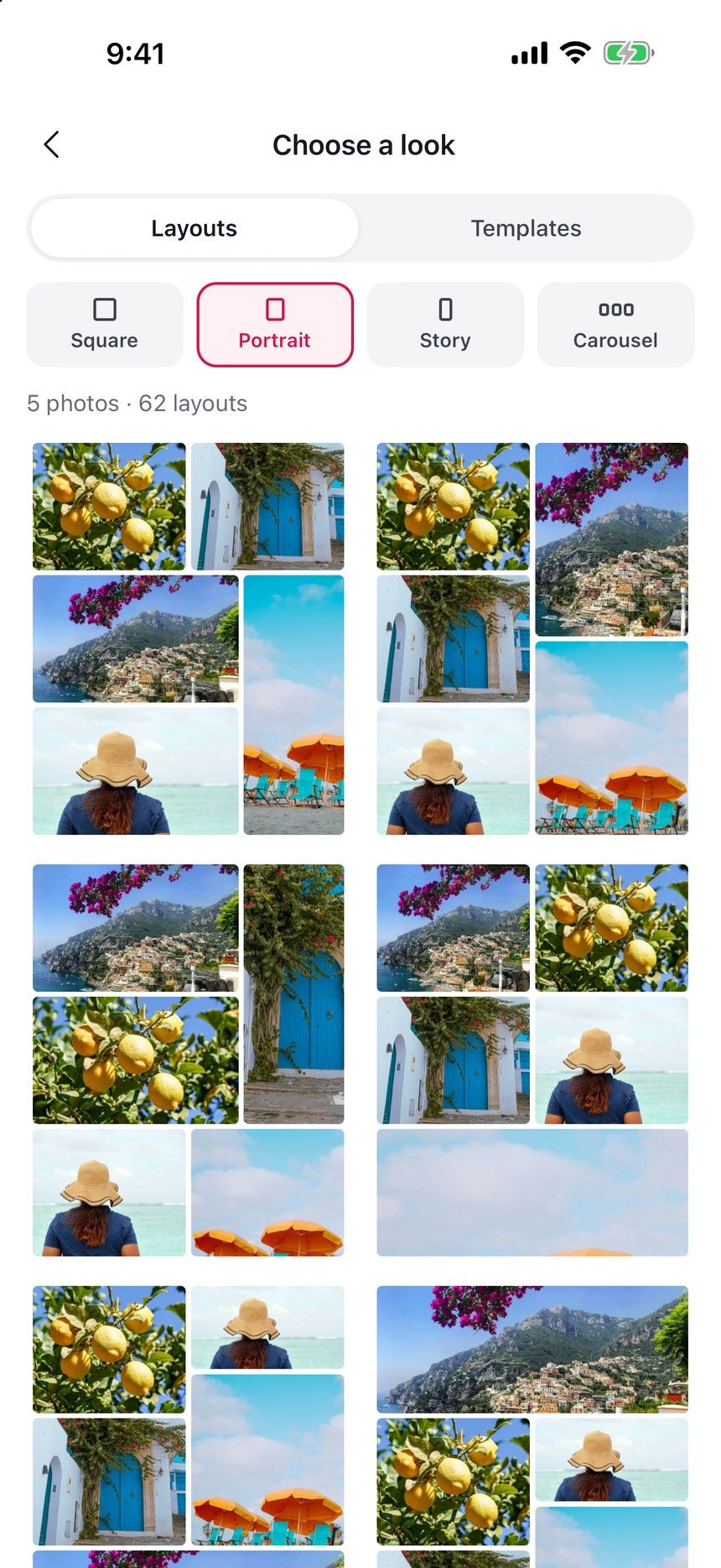
In Choose a look, open Templates for the Scrapbook designs, or stay in Layouts for a plain grid.
Tape things down
Tap Add, then Sticker. Browse or search the collections, then move, resize and turn each sticker.
Write on it
Tap Add, then Text. Choose a handwritten font and a color, and put the caption where a pen would go.
Save it
Tap Export and save to Photos as a JPG or PNG in HD, 2K or 4K, or as a video if the page moves.
N° 05 Ideas
Scrapbook page ideas to start with.
Six pages that work well with the photos most of us already have, and the design to try for each.
A weekend in four photos
Breakfast, the view, one small detail and a two-word caption. Tape the prints at slight angles so the page looks handled.
Try: Weekend Scrapbook
One page per day of a trip
Three or four photos from the day and a postage stamp for the place. Over a week they become a travel journal.
Try: Vintage Journal
A pressed-flower page
Garden or market photos with pressed botanicals tucked behind the corners of the prints.
Try: Pressed Flowers
Letters and keepsakes
Photograph a ticket stub, a postcard or a note and use it as one of the photos, next to the day it belongs to.
Try: Old Letters
A film strip
Photos in the order they happened: arriving, the middle of the day, leaving. Write the date on the edge.
Try: Film Roll
An instant-print album
A caption under each print, as you would write on real instant film, and one sticker per page at most.
Try: Polaroid Memories
Print it, post it, or both
A square page saved in 4K is 3840 × 3840 pixels: enough for a sharp print about 32 cm (12.8 in) wide at 300 dpi. For Instagram, start on a portrait 4:5 canvas for the feed or 9:16 for a story; for several pages in one post, make a carousel.
Questions
Is CollageDeck’s scrapbook maker free?
CollageDeck is free to download, and every design, layout, sticker and tool is there to use. Your first 3 exports are free. CollageDeck Pro makes exports unlimited, as a weekly or yearly subscription or as Lifetime, paid once.
Does it put a watermark on my pages?
No. Nothing is stamped on what you save, with CollageDeck Pro or without.
How many photos fit on one scrapbook page?
Layouts and designs hold 2 to 10 photos. You can also add more photos as their own layers from Add, then move and resize them anywhere on the page.
Can I print my scrapbook pages?
Yes. Save the page as a PNG or JPG in 4K. A square page in 4K is 3840 × 3840 pixels, which prints sharply at about 32 cm (12.8 in) wide at 300 dpi.
Does it work on iPad?
Yes. CollageDeck runs on iPhone and iPad with iOS or iPadOS 16.4 or later, and the iPad editor works in portrait and landscape.
Where are my scrapbook pages stored?
On your device. CollageDeck has no account and no cloud: projects stay in the app until you delete them, and what you save goes to your Photos. It works offline.